

Beyond the ordinary
This is where our journey begins. Get to know our business and what we do, and how we're committed to quality and great service. Join us as we grow and succeed together. We're glad you're here to be a part of our story.

Welcome
PapaCare allows you to start a video visit with your loved one remotely — even if they do not know how to use a phone, tablet, or computer.
With one tap, PapaCare will automatically:
- Turn on the TV
- Switch to the correct HDMI input
- Launch Zoom
- Join your meeting
- Display the call on your loved one’s TV
Your loved one does NOT need to press any buttons.
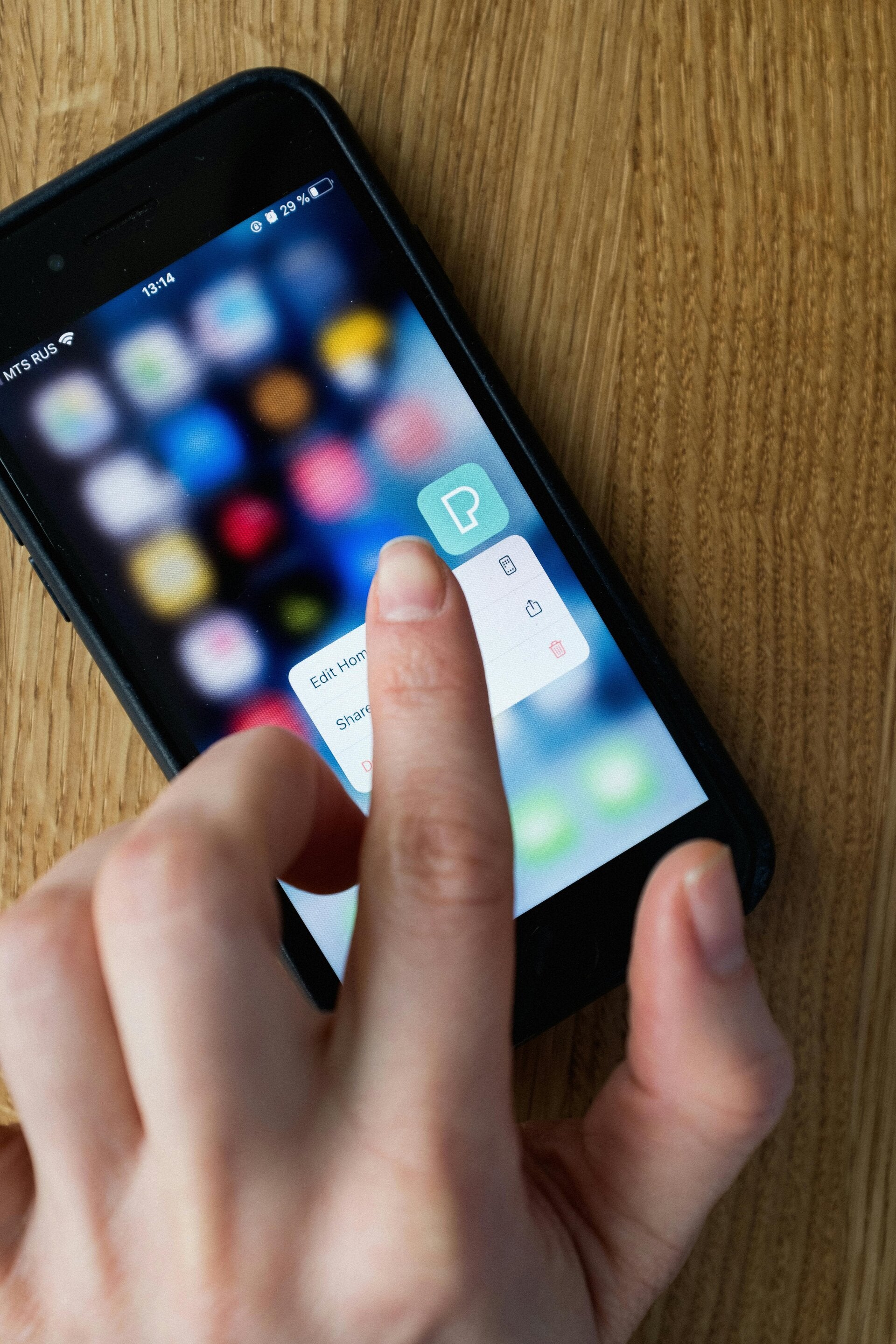
Before Your First Visit
Please make sure:
- PapaCare device is connected to the TV and powered on.
- Internet connection is working at your loved one’s location.
- You have Zoom installed on your phone, tablet, or computer.
- You know your Zoom login credentials.
- You have your assigned Personal Meeting ID and meeting Passcode.
How to Start a Visit
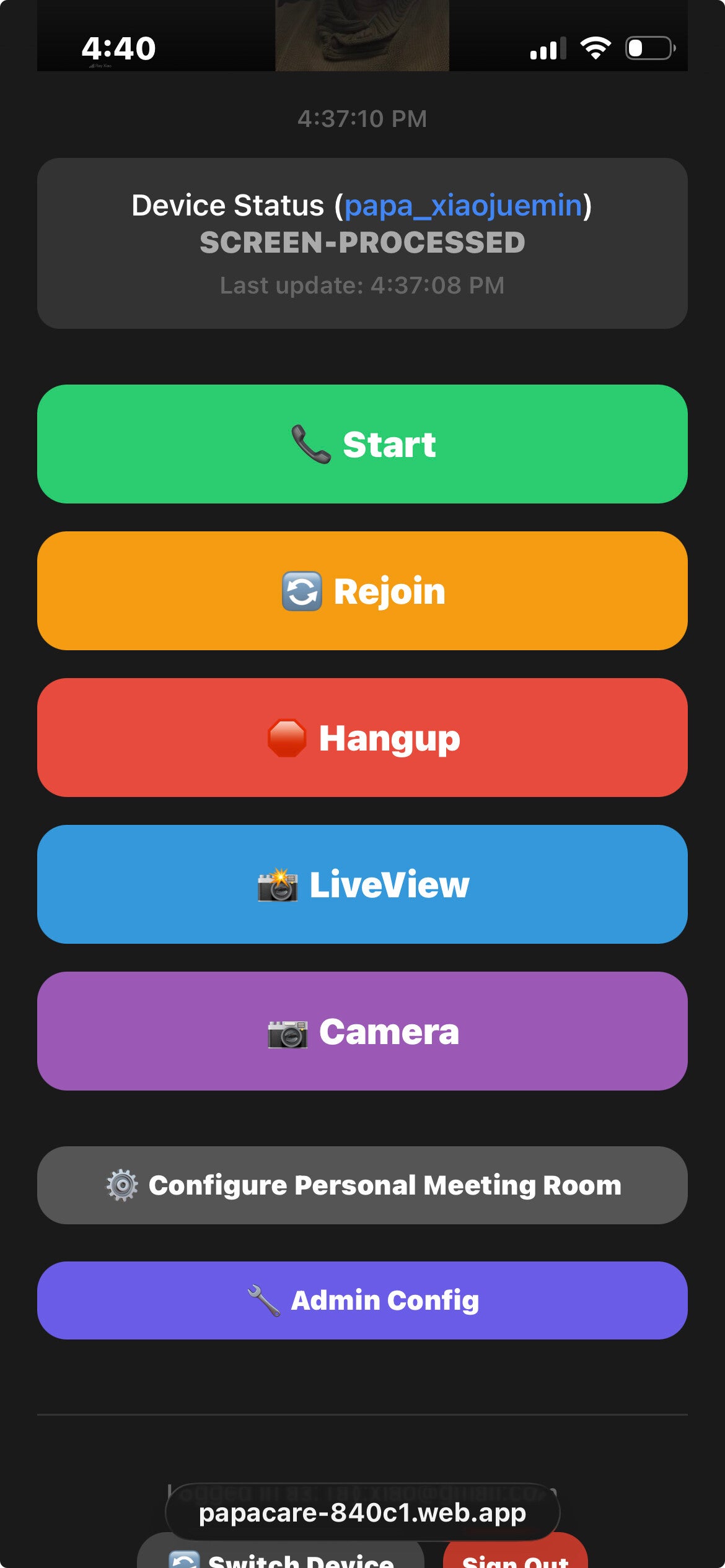
Step 1 – Open PapaCare Web App
Go to: https://papacare.ca
Log in to your account.
You will see the START button on the screen.
Step 2 – Tap START
Tap the START button once.
The system will begin initialization. Please wait 2–3 minutes.
During this time:
- The device may reboot
- The TV may turn on automatically
- The HDMI input may switch
- Zoom will launch and prepare the meeting
Step 3 – Join from Your Zoom App
After 2–3 minutes:
1. Open your Zoom app
2. Log in using your assigned account
3. Join using your Personal Meeting ID
Your loved one will already see the meeting on their TV.

Troubleshooting
TV Does Not Turn On
- Check that the TV has power.
- Ensure HDMI cable is connected securely.
- Confirm TV supports HDMI-CEC.
- Try manually turning on the TV once.
Zoom Does Not Appear
- Wait full 3 minutes.
- Check internet connection.
- Try pressing START again.
- Contact PapaCare support if issue continues.
Nothing Happens After Pressing START
- Ensure device is online.
- Refresh browser page and try again.
- Confirm correct device is selected.